CI/CD Pipelines: What I Would Explain in an Interview
CI versus continuous delivery versus continuous deployment, the stages of a real pipeline, cache versus artifacts, environments and approvals, blue/green and canary, secrets, and a working .gitlab-ci.yml.
CI/CD is three ideas wearing one acronym
When an interviewer asks about CI/CD, they usually want to hear whether you know where one idea stops and the next one starts. Most people answer with tools. I'd start with the question every pipeline answers: what happens to a commit after it lands on main?
Continuous integration means everyone merges small changes often, and every change is built and tested automatically. That's it. CI says nothing about production.
Continuous delivery means main is always in a releasable state. Every green commit produces something you could ship, and shipping it is one decision, often one click.
Continuous deployment removes the decision. Every green commit goes to production on its own. That only works when your tests, your monitoring and your rollback are good enough to stand in for the person who used to press the button.
All of my repos live on GitLab, so the examples here are GitLab CI. The ideas carry over to GitHub Actions, Jenkins or anything else; the keywords change, the reasoning doesn't. The carousel slides are in the article too, so you can save this and skim.
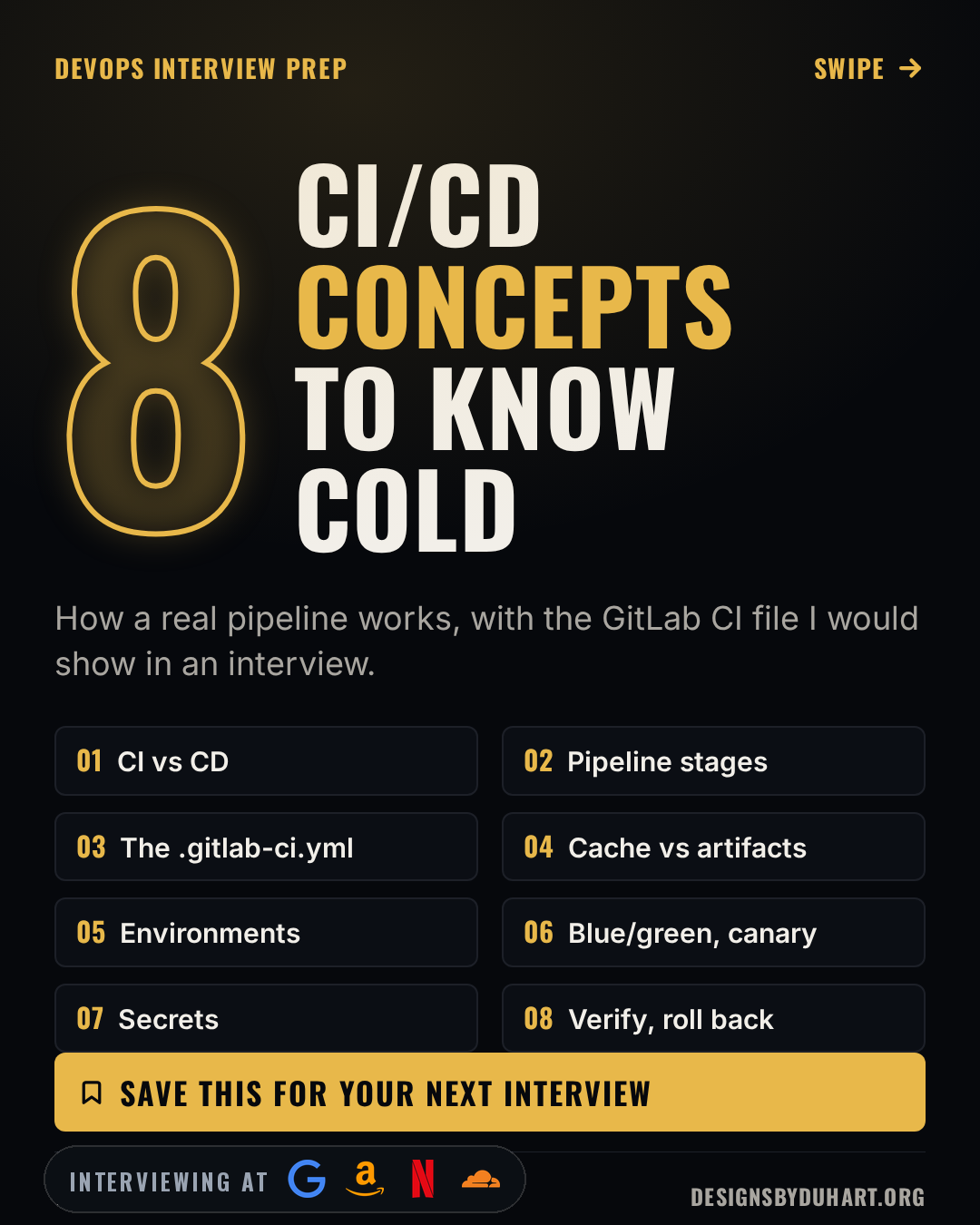
CI/CD concepts to know cold
CI/CD in 40 seconds
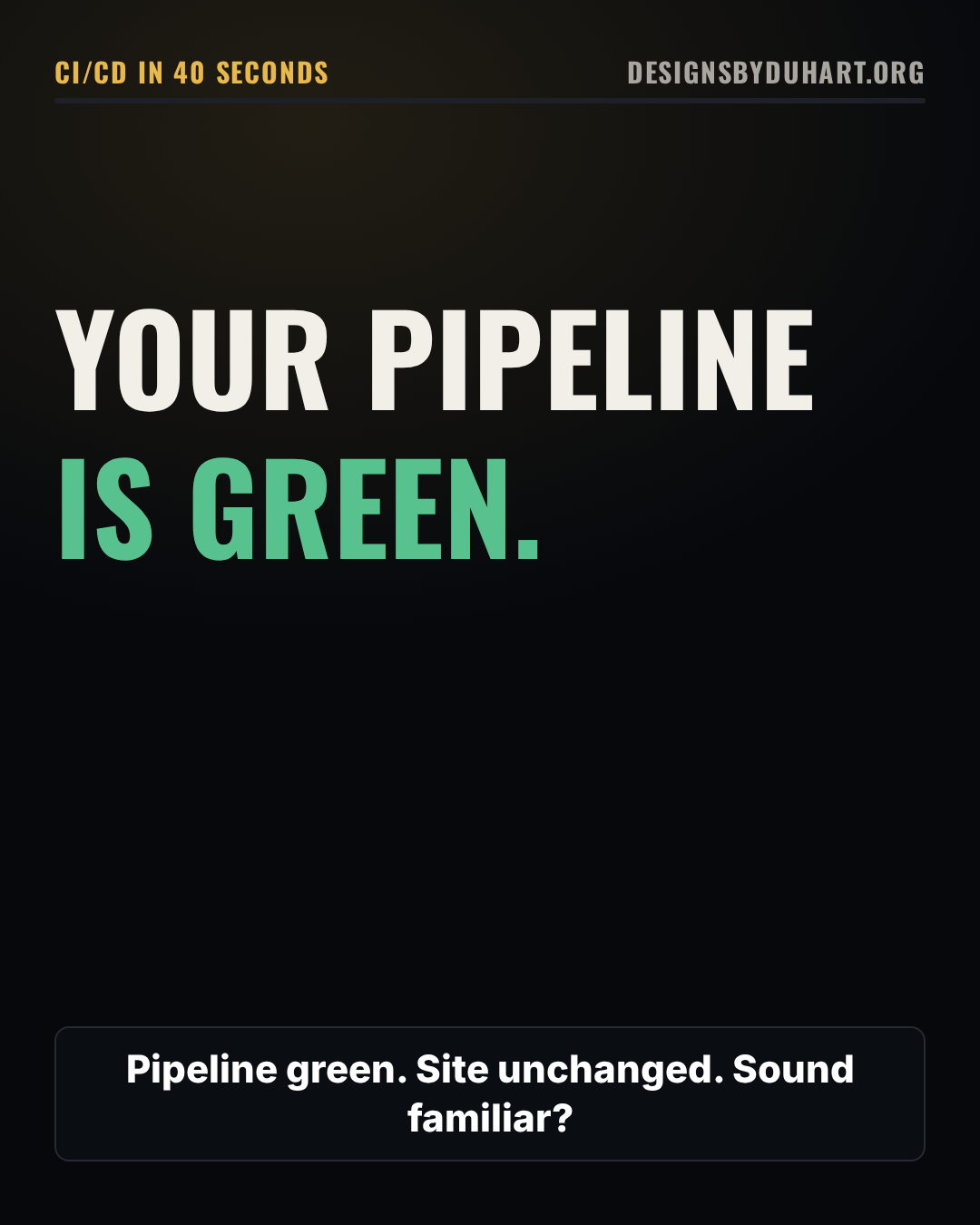
CI, delivery, deployment
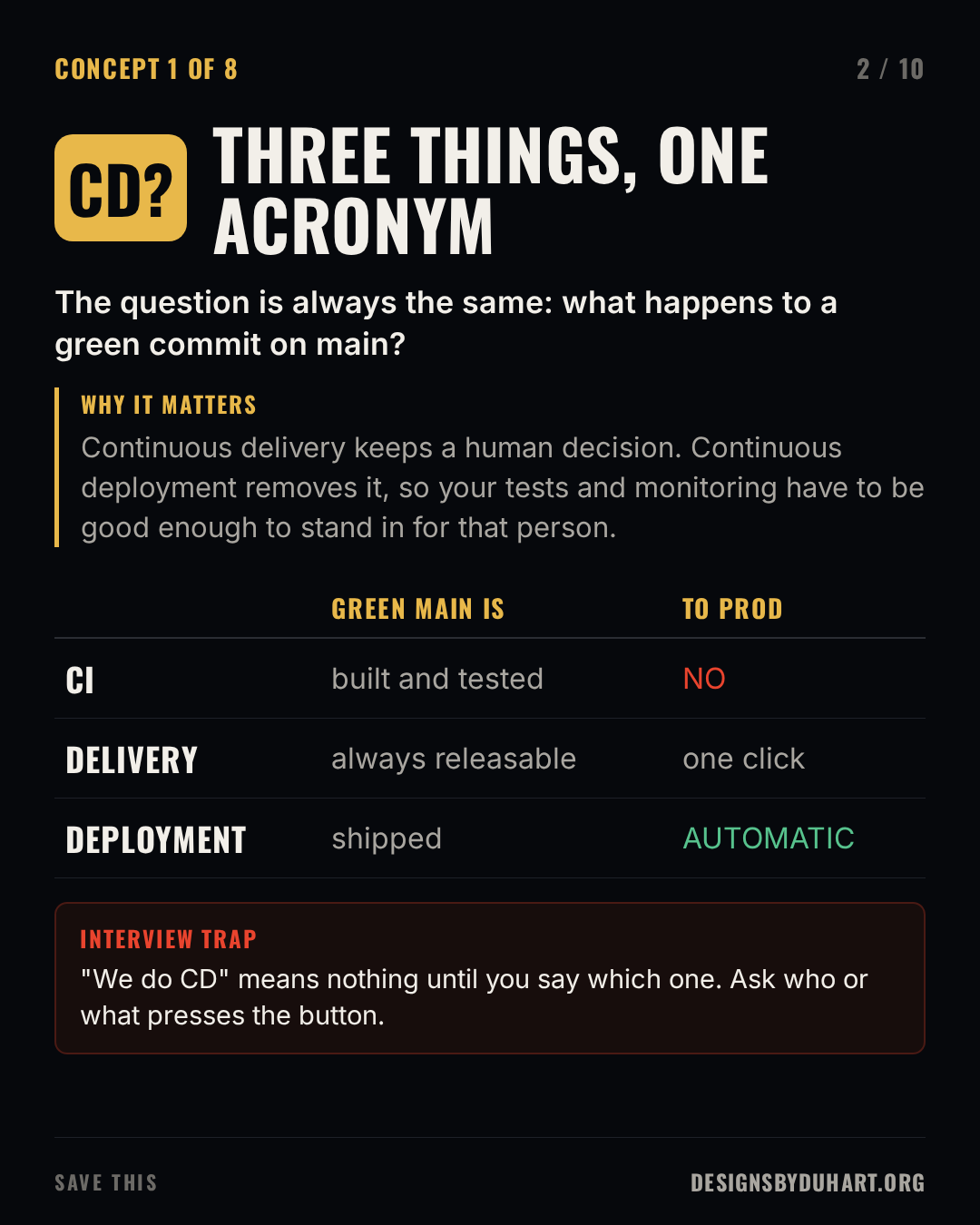
The stages, and why the order matters
A pipeline is a series of stages, and the order is about cost. You want the cheapest check that can fail to run first. A lint error should fail in twenty seconds, not after a ten minute build.
- Lint: formatting, static analysis, type checks.
- Test: unit tests, then integration tests, with JUnit reports so failures show up in the merge request.
- Build: produce one artifact, once. A container image, a bundle, a binary.
- Scan: static analysis for security issues, dependency vulnerabilities, secrets committed by accident.
- Deploy: staging first, then production.
- Verify: hit the deployed thing and check it's alive and it's the version you meant.
- Roll back: the way back, which you rehearse before you need it.
The rule I'd say out loud in an interview is build once, promote everywhere. The artifact you tested is the artifact you deploy. If the production job rebuilds from source, you are shipping a binary nobody tested, built with whatever dependency versions resolved that minute.
Seven stages
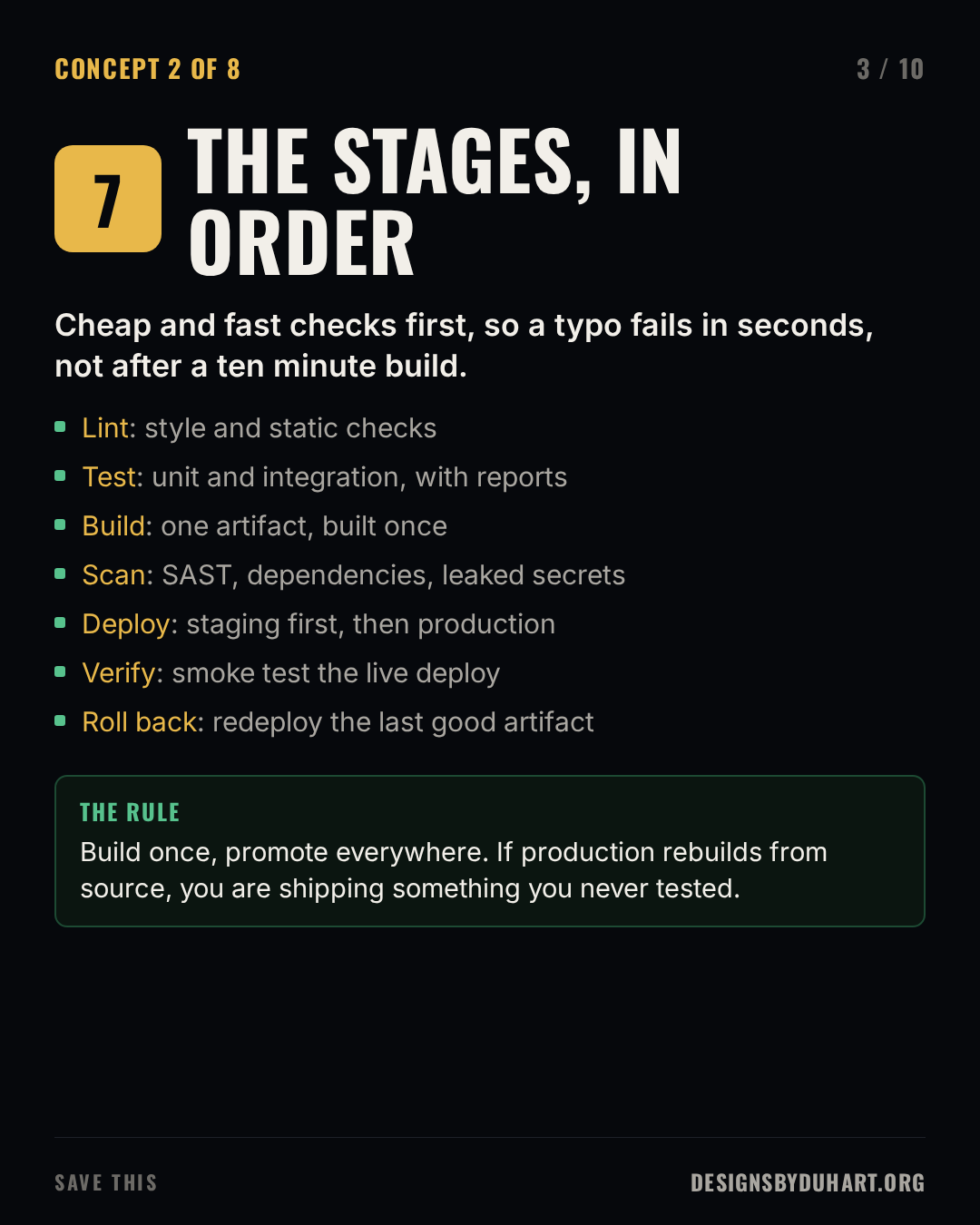
The whole pipeline, in one file
In GitLab the pipeline is .gitlab-ci.yml at the root of the repo. Here's a complete, minimal one for a Node service. It's close to what I actually run, with the deploy script reduced to a placeholder you'd swap for your own.
A few choices worth explaining before you read it:
workflow: rulesruns the pipeline for merge requests and for the default branch only, so you don't get a duplicate branch pipeline for every MR push.- The scanners come from GitLab's own templates through
include. They add their jobs to theteststage, so they run in parallel with the tests. - The Node setup lives in a hidden job,
.node, that other jobsextends. I used to put it underdefault:, anddefault:applies to every job, including the scanner jobs, which run in images that don't have npm. buildkeepsdist/as an artifact. Both deploy jobsneeds: [build], so they download that exact output instead of building again.
A complete .gitlab-ci.yml for a Node service: lint, test, scan, build once, deploy to staging, gate production, verify each deploy.
stages: [lint, test, build, staging, production]

workflow:
  rules:
    - if: $CI_PIPELINE_SOURCE == "merge_request_event"
    - if: $CI_COMMIT_BRANCH == $CI_DEFAULT_BRANCH

include:
  - template: Jobs/SAST.gitlab-ci.yml
  - template: Jobs/Secret-Detection.gitlab-ci.yml

.node:
  image: node:22-alpine
  cache:
    key:
      files: [package-lock.json]
    paths: [.npm/]
  before_script:
    - npm ci --cache .npm --prefer-offline

lint:
  extends: .node
  stage: lint
  script: npm run lint

test:
  extends: .node
  stage: test
  script: npm test
  artifacts:
    when: always
    reports:
      junit: junit.xml

build:
  extends: .node
  stage: build
  script: npm run build
  artifacts:
    paths: [dist/]
    expire_in: 1 week

.deploy:
  image: alpine:3.20
  needs: [build]
  before_script:
    - apk add --no-cache curl
  script:
    - ./scripts/deploy.sh "$CI_ENVIRONMENT_NAME" dist/
    # verify: the live service must answer, and must be this commit
    - curl --fail --retry 5 --retry-all-errors "$CI_ENVIRONMENT_URL/healthz"
    - test "$(curl -s "$CI_ENVIRONMENT_URL/version")" = "$CI_COMMIT_SHA"
  rules:
    - if: $CI_COMMIT_BRANCH == $CI_DEFAULT_BRANCH

deploy_staging:
  extends: .deploy
  stage: staging
  environment:
    name: staging
    url: https://staging.example.com
  resource_group: staging

deploy_production:
  extends: .deploy
  stage: production
  needs: [build, deploy_staging]
  environment:
    name: production
    url: https://example.com
  resource_group: production
  rules:
    - if: $CI_COMMIT_BRANCH == $CI_DEFAULT_BRANCH
      when: manual
The pipeline is a file
![Slide 4 of 10: THE PIPELINE IS A FILE. A code card (yaml) shows: stages: [lint, test, build, staging, production] include: # scanners join the test stage - template: Jobs/SAST.gitlab-ci.yml - template: Jobs/Secret-Detection.gitlab-ci.yml .node: image: node:22-alpine before_script: [npm ci --cache .npm] lint: extends: .node stage: lint script: npm run lint test: extends: .node stage: test script: npm test Interview trap: Put npm ci under default: and it runs in the scanner jobs too, which have no npm. A hidden .node job you extend avoids that.](https://media.designsbyduhart.org/viral/08a376e95820d324.png)
One thing to check on your own GitLab version: depending on the release, the security templates may only run in branch pipelines unless you opt them into merge request pipelines. Open a merge request and look for the sast and secret_detection jobs before you assume they're there.
Cache versus artifacts
This is my favourite pipeline interview question because it sounds like trivia and isn't.
A cache is for speed. It stores things you could rebuild, like the npm download cache, so the next job or the next pipeline doesn't fetch them again. GitLab treats it as best effort. A job on a different runner may not get it, and your job has to work anyway. Keying it on the lockfile (cache:key:files) means it's thrown away exactly when dependencies change.
An artifact is for correctness. It's the output of a job that later jobs in the same pipeline depend on: the build, the test report, the coverage file. Artifacts are uploaded, guaranteed to be there for jobs that need them, downloadable from the UI, and they expire when you tell them to.
The bug I see is passing dist/ through the cache. It works on a single runner for months, and then the team adds a second runner and deploys start shipping an empty folder.
Cache versus artifacts
![Slide 5 of 10: CACHE VS ARTIFACTS. Cache makes jobs faster. Artifacts carry results to later jobs. Do not mix them up. A code card (yaml) shows: .node: cache: key: files: [package-lock.json] paths: [.npm/] build: extends: .node stage: build script: npm run build artifacts: paths: [dist/] expire_in: 1 week Interview trap: The cache is best effort and may be missing on another runner. Never pass build output through it. That is what artifacts are for.](https://media.designsbyduhart.org/viral/ee487999d7d4a7e3.png)
Environments, gates and approvals
An environment in GitLab is a named deploy target (staging, production) with a URL and a history of every deployment to it. Declaring environment: on a job is what gives you that history, and it's what makes the Rollback button possible later.
The gate is when: manual. Staging deploys on every merge to main; production sits as a play button until someone presses it. That's continuous delivery. Delete the when: manual line and you've switched to continuous deployment, which is a one line change with a very large blast radius.
Two more keywords earn their place. resource_group makes sure only one deploy to an environment runs at a time, so two merges a minute apart can't race each other. And on GitLab Premium or Ultimate you can mark production as a protected environment with required approvals, so the play button needs a named approver and not just anyone with developer access.
Environments and gates
![Slide 6 of 10: ENVIRONMENTS AND GATES. Staging deploys on every merge. Production waits for a person. resourcegroup: one deploy at a time. Protected environments add required approvers. A code card (yaml) shows: deploy_production: extends: .deploy stage: production needs: [build, deploy_staging] environment: name: production url: https://example.com resource_group: production rules: - if: $CI_COMMIT_BRANCH == $CI_DEFAULT_BRANCH when: manual](https://media.designsbyduhart.org/viral/3365035176741926.png)
Blue/green and canary
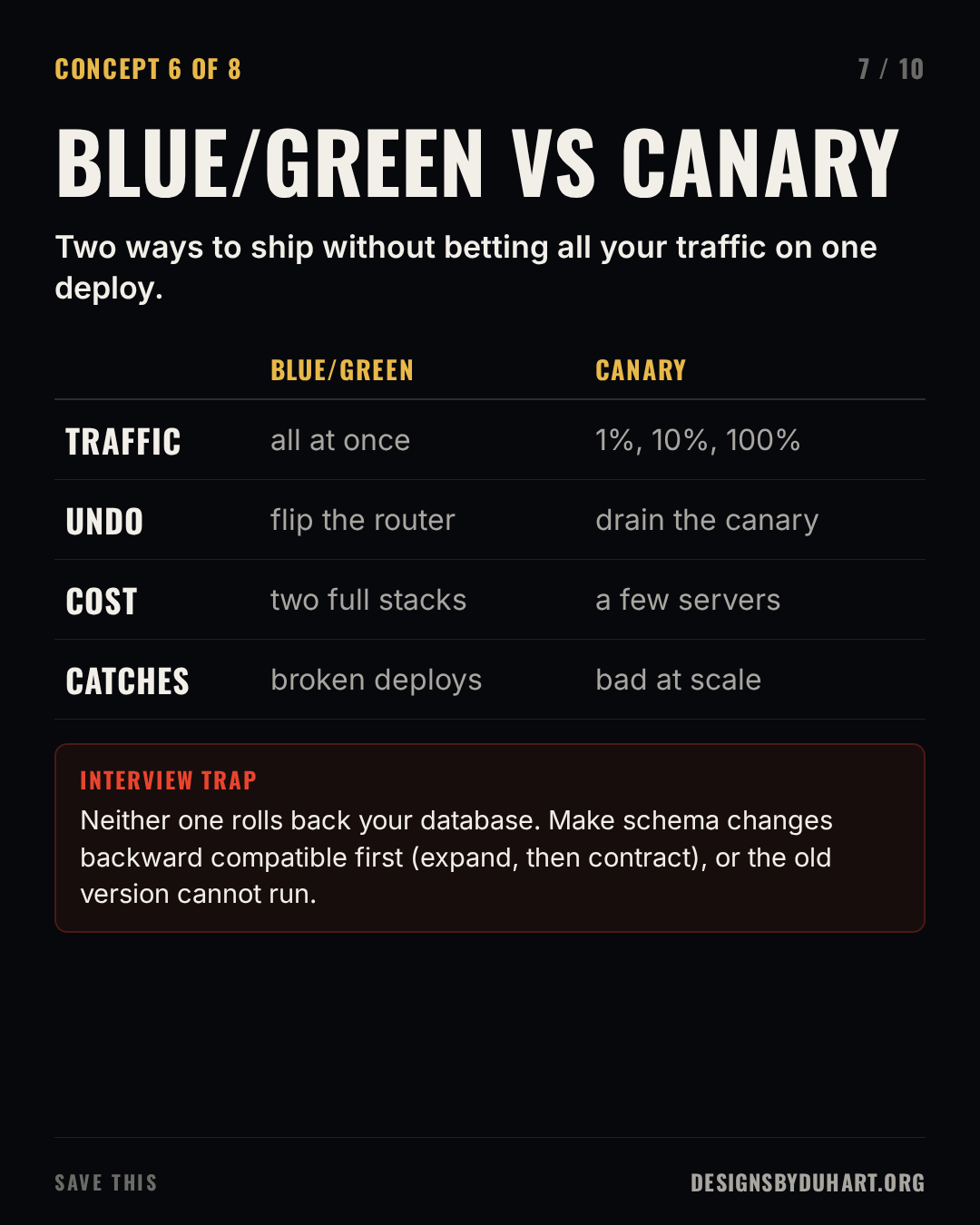
Both are ways to avoid sending all of your traffic to a version you've never seen in production.
Blue/green runs two full copies of production. Blue is live. You deploy to green, test it, then flip the router so all traffic goes to green. Rollback is flipping it back, which takes seconds. The cost is running two full stacks, at least for the switchover window.
Canary sends a small slice of traffic to the new version, say 1 percent, then 10, then all of it, and watches error rate and latency at each step. If the numbers go bad, you drain the canary and almost nobody noticed. It's cheaper than blue/green and it catches problems that only show up under real traffic, but it needs good metrics and a way to split traffic.
The trap in both: neither one rolls back your database. If the new version renames a column, the old version can't run against the new schema, and your instant rollback isn't instant anymore. The pattern that fixes it is expand and contract: add the new column, deploy code that writes both, backfill, switch reads, and only drop the old column in a later release.
Blue/green versus canary
Secrets
Secrets never go in the repo, and they never go in .gitlab-ci.yml. In GitLab they're CI/CD variables in the project or group settings. Two flags matter:
- Masked hides the value in job logs if something prints it.
- Protected only exposes the variable to pipelines on protected branches and tags, so a feature branch can't read the production deploy key.
The better answer, if your cloud supports it, is to store no long-lived key at all. GitLab's id_tokens keyword gives the job a signed, short-lived OIDC token. Your cloud provider trusts GitLab as an identity provider and trades that token for credentials that expire in minutes, scoped to that project and branch.
OIDC instead of a stored key: the job receives a signed token and exchanges it for short-lived cloud credentials.
deploy_production:
  extends: .deploy
  id_tokens:
    CLOUD_OIDC_TOKEN:
      aud: https://sts.example.com
  script:
    - ./scripts/assume-role.sh "$CLOUD_OIDC_TOKEN"
    - ./scripts/deploy.sh production dist/
Secrets
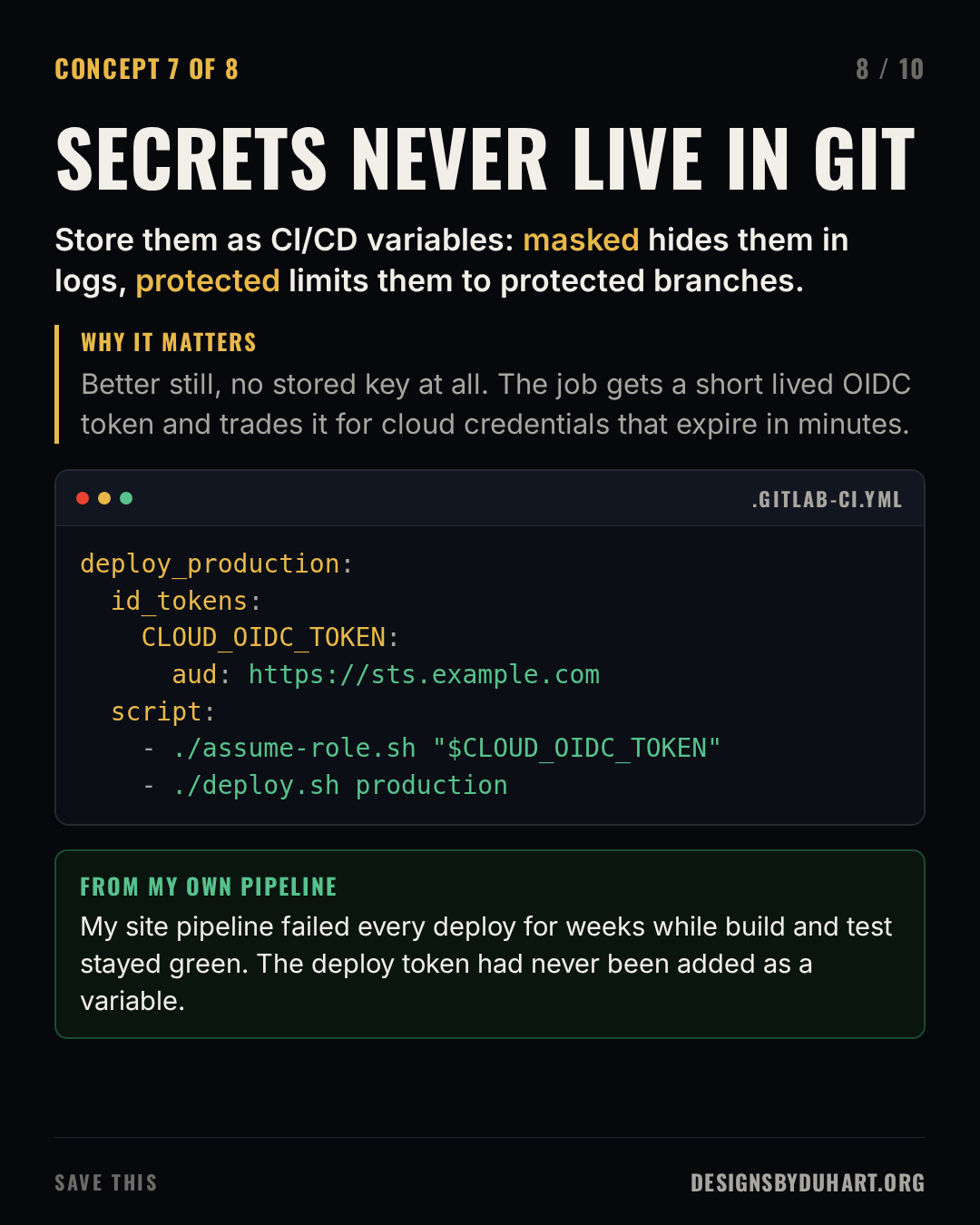
Here's my own lesson on this one. My portfolio site's pipeline had test, build and deploy stages, and for weeks every push to main showed green builds and tests. The deploy job failed every time with one line: wrangler needed a CLOUDFLARE_API_TOKEN and there wasn't one, because I'd never added it to the project's variables. The pipeline file even documented the requirement in its header. Nothing was wrong with the code. The site just wasn't updating.
Verify, then keep a way back
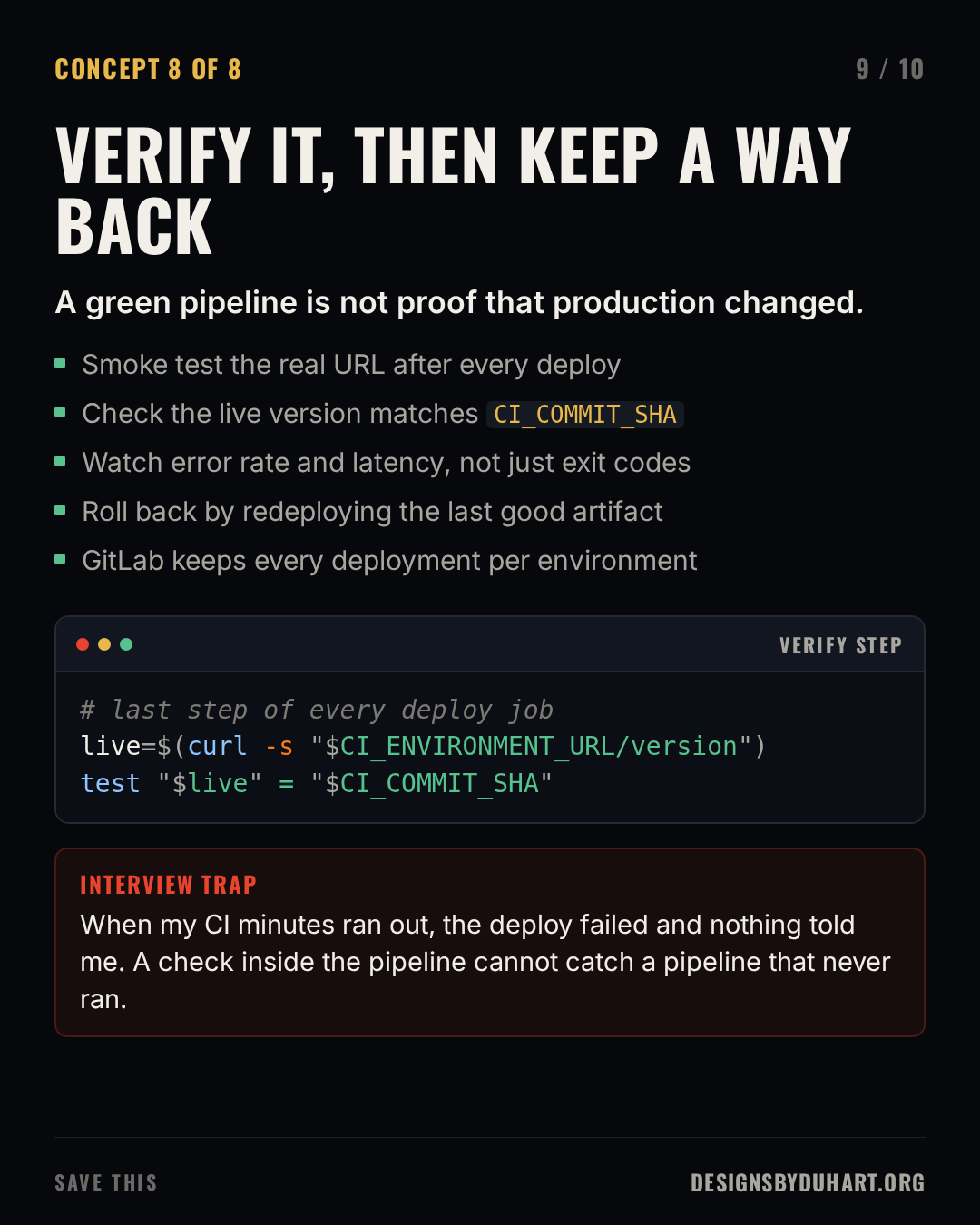
That story is why I think verify is the most underrated stage. A green pipeline tells you the jobs exited zero. It doesn't tell you production changed.
On another project, the deploy job now does one more thing after deploying: it asks the platform which commit is live and fails unless that equals CI_COMMIT_SHA. That catches a deploy that ran and silently shipped the wrong thing. It can't catch a deploy that never ran. I learned that the day my GitLab CI minutes ran out: the merge looked fine, the deploy job failed with a quota error, nobody got paged, and production stayed on the old commit. So I also check from outside the pipeline, comparing the live version with the head of main. A pipeline can't report on itself when it isn't running.
Rollback is the other half. If every deploy promotes an artifact into a named environment, rolling back is redeploying the previous one, and GitLab's environment page has a button that re-runs an earlier deployment job. Rehearse it once, on a quiet day, so the first time isn't during an incident.
Verify, then keep a way back
How I'd answer in an interview
If someone asks "walk me through your CI/CD pipeline", I'd give them the shape in one breath: lint, test and scan on every merge request; build one artifact on main; deploy it to staging automatically; production behind a manual gate with one deploy at a time; a smoke test and version check after every deploy; rollback by redeploying the last good artifact. Then I'd pick one thing that went wrong and what I changed. Interviewers remember the failure story far longer than the diagram.
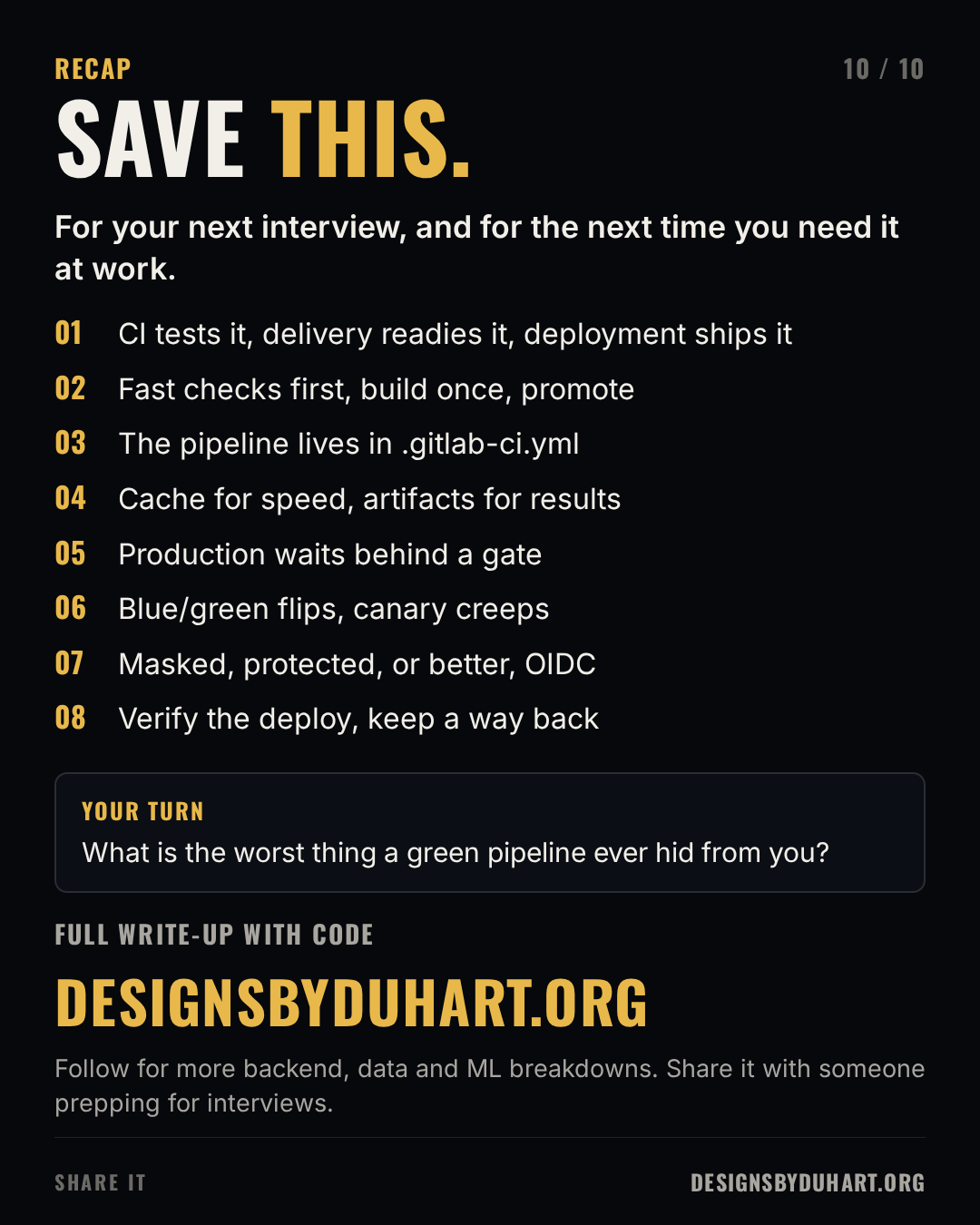
Save it for your next interview
Next in the interview series: why we need MCP, the protocol that lets AI apps talk to your tools.
More: LinkedIn · Instagram. Portfolio and case studies: designsbyduhart.org.
If any of this saved you an afternoon, Buy me a coffee.